A Step-by-Step Guide to Installing and Typing with the Sirijanga Keyboard on Your PC
Learn how to install and use the Sirijanga Unicode Keyboard on your PC to type in the Limbu script using Romanized input. Developed by Wanju Wayba Tamang to support indigenous language preservation.
Wanju Wayba Tamang
7/17/20253 min read
Introduction to the Sirijanga Keyboard
In an age dominated by digital communication, our indigenous scripts often struggle to find their place. As a proud member of the Tamang communities, I understand the emotional weight and historical depth behind our scripts. One such precious script is Sirijanga, traditionally used to write the Limbu language. Unfortunately, despite its cultural importance, many people have been unable to use this script easily on computers—until now.
The Sirijanga Unicode Keyboard has been developed to make it possible for anyone to write in Sirijanga directly on their PC. This keyboard is designed for ease of use, especially for those who are familiar with Romanized Limbu. Whether you're writing a document, sending a message, or preserving your heritage through digital means, this keyboard can support you in that mission.
System Requirements for Installation
Before we begin the installation process, please make sure your system meets the following requirements:
✅ Operating System: Windows 7, 8, 10, or 11 (64-bit recommended)
✅ Administrator Access: Required to install fonts and keyboard layout
✅ Memory: Minimum 2 GB RAM
✅ Disk Space: Less than 50 MB required
✅ Internet Connection: Required only for downloading; usage is 100% offline
Note: The keyboard works offline after installation. You can type anywhere—Word, Notepad, browsers, or even in design apps—without the need for external tools.
Downloading the Sirijanga Keyboard Software
The software is lightweight and free to use. You can download it from the official source:
🌐 Download Link: https://wanjuwayba.com.np/download
The download package includes:
Sirijanga_Keyboard_Setup.exe – Windows installer
UserGuide.pdf – Optional help document
Keyboard layout image (virtual guide)
Once downloaded, save the file in an easy-to-access location such as your desktop or downloads folder.
Installation Process: Step-by-Step
Follow these steps to install the Sirijanga Keyboard on your PC:
🔧 Step 1: Run the Installer
Double-click the Setup.exe file. You may be prompted by Windows to allow the installation—click Yes.
✅ Step 2: Complete the Setup
Click Finish when the installation is complete. Restart your system or log out and log back in to ensure all changes are applied.
Setting Up the Sirijanga Keyboard Layout
After installation, you need to activate the keyboard layout from your Windows settings:
Go to:
Settings > Time & Language > Language > Preferred LanguageClick your current language (e.g., English) → Options
Under Keyboards, click Add a Keyboard
Select Sirijanga Keyboard developed by Wanju Wayba Tamang
Done! 🎉 You can now switch between layouts using Windows + Spacebar or the language icon in the taskbar.
Typing with the Sirijanga Keyboard
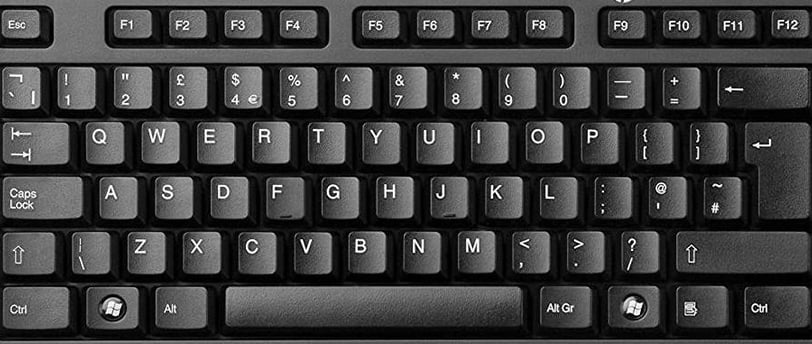
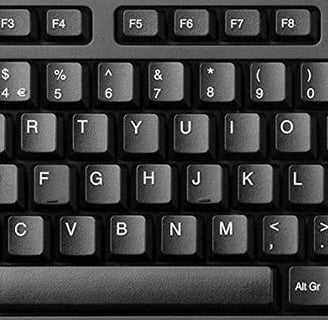
The keyboard follows a Romanized input logic, meaning you type Roman characters, and they convert to the corresponding Sirijanga script.
✍️ Examples:
k - ᤁ (ka) shift k - ᤂ (kha)
cap k - ᤰ (k) g - ᤃ (ga)
g shift -ᤄ (gha) shift n -ᤅ (nga)
Full charts are available in the downloadable guide or layout image.
You can now type in apps like:
📝 MS Word
📄 Google Docs
🌐 Browsers (Facebook, Gmail)
🖌️ Photoshop & Adobe apps
🗂️ File Naming
Troubleshooting Common Issues
Even with the best systems, minor issues may occur. Here are some common problems and solutions:
Issue: Keyboard Not Appearing
Fix: Recheck Settings > Language > Keyboard
Make sure “Sirijanga Unicode Keyboard” is added
Issue: Characters Not Displaying
Fix: Ensure the font is properly installed. If needed, reinstall Sirijanga_Unicode.ttf
Issue: Incorrect Output
Fix: Double-check your input method (Roman spelling); refer to layout guide
Issue: Cannot Switch Keyboard
Fix: Use Win + Spacebar shortcut
Restart the PC if switching doesn’t work
About the Developer: Wanju Wayba Tamang
I am Wanju Wayba Tamang, a proud member of the indigenous Tamang community of Nepal. I am a digital language activist, developer, and cultural preserver with a mission to revive and digitize native scripts such as Sirijanga, Tamyik, and Rong. This keyboard is not just a technical project—it is my tribute to the elders, writers, poets, and communities who kept our language alive despite centuries of neglect.
I have worked tirelessly to ensure that Sirijanga is not left behind in the digital era. With this tool, I hope you feel empowered to write your history, culture, and stories in your own script.
A Personal Message to the Community
"Dear brothers and sisters,
We have carried the voice of our ancestors in our hearts and spoken in languages they gifted us. But now, we must write in our own scripts to ensure they live on beyond our memory.
The Sirijanga Keyboard is my humble offering to our identity. I ask each of you—writers, teachers, students, and culture bearers—to use it, teach it, and share it.
Let us not be forgotten. Let us write ourselves into the future.
— Wanju Wayba Tamang"
If you found this guide helpful, please share it with others and help revive the legacy of our scripts—one keystroke at a time.
🖋️ Download now. Start writing. Stay rooted.
#SirijangaKeyboard #WanjuWayba #IndigenousScripts #DigitalLimbu #UnicodeNepal
Connect
Stay Connected — Empowering Indigenous Voices Through Innovation.
Explore
Innovate
Wanju Wayba
📧 Email: contact@wanjuwayba.com.np
📞 WhatsApp: +977-97002841
🌐 Website: www.wanjuwayba.com.np
© 2024 wanjuwayba. All rights reserved.